
How to Add Someone to Google Ads Manager: Step-by-Step Guide
If you need to grant access to someone in your Google Ads account, follow these steps to ensure they can manage your campaigns effectively. Here’s a detailed, step-by-step guide on how to add someone to Google Ads Manager.
Step 1: Sign in to Google Ads
- Go to the Google Ads login page.
- Enter your email and password to sign in.
- Once you sign in you MAY need to select the account you want to work on (if you are on multiple ad accounts or on a MCC) Select the account you wish to add someone to.
Step 2: Navigate to Account Access
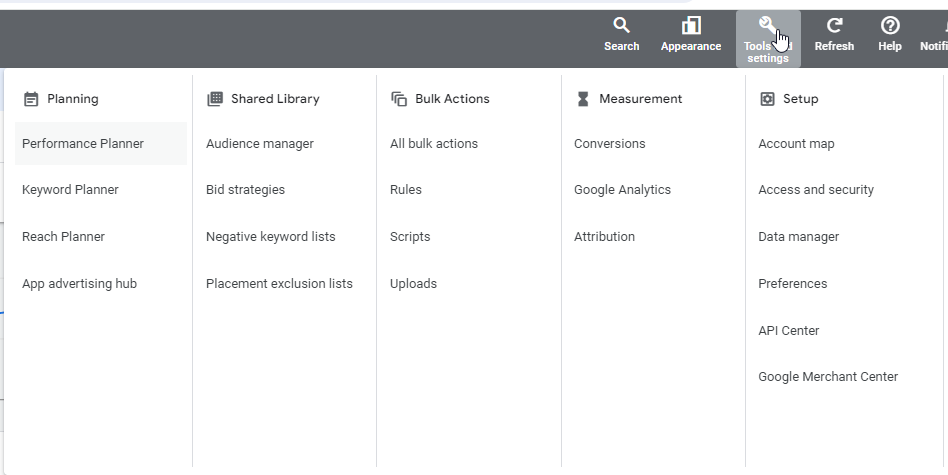
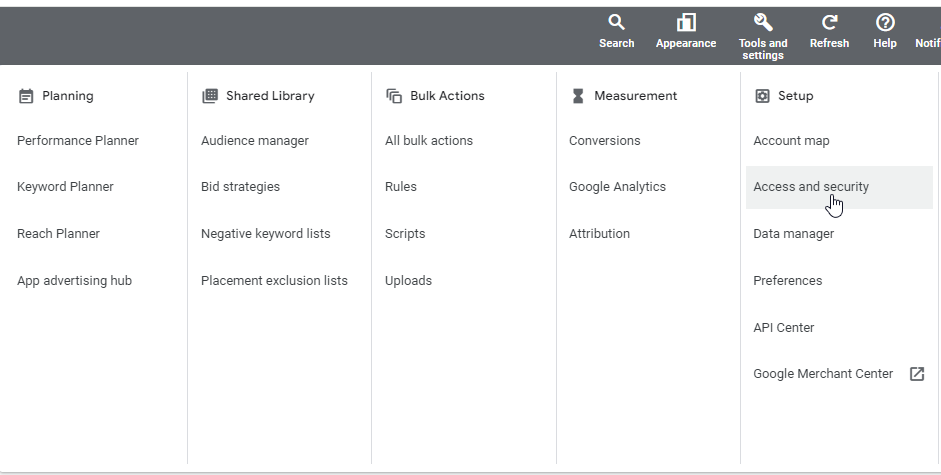
- In the upper right corner, click on the tools and settings icon (wrench icon).
- Under the “Setup” column, click on “Access and security.”
Step 3: Add New User
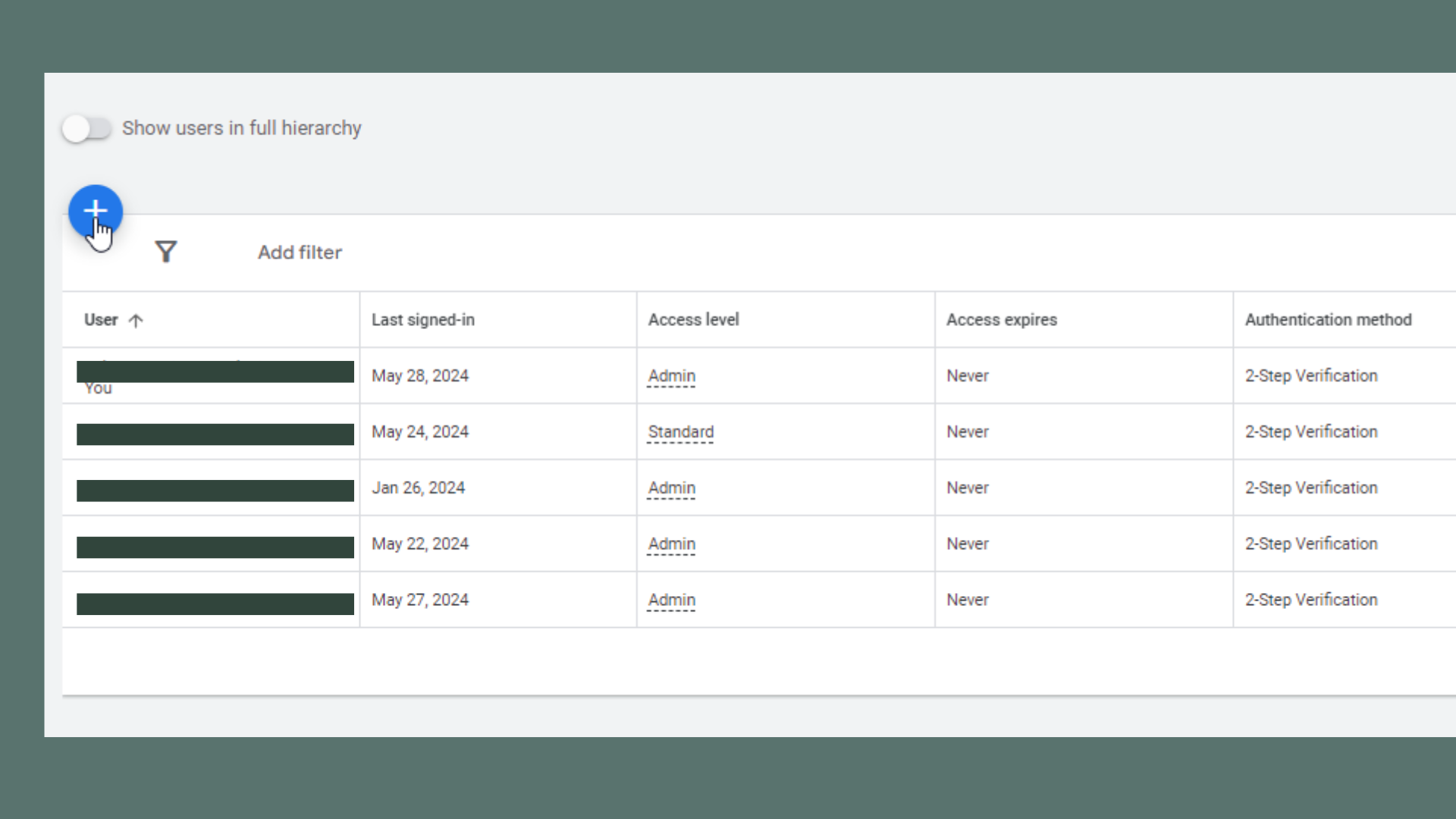
- In the “Account access” page, click on the blue plus button (+) to add a new user.
- Enter the email address of the person you want to add.
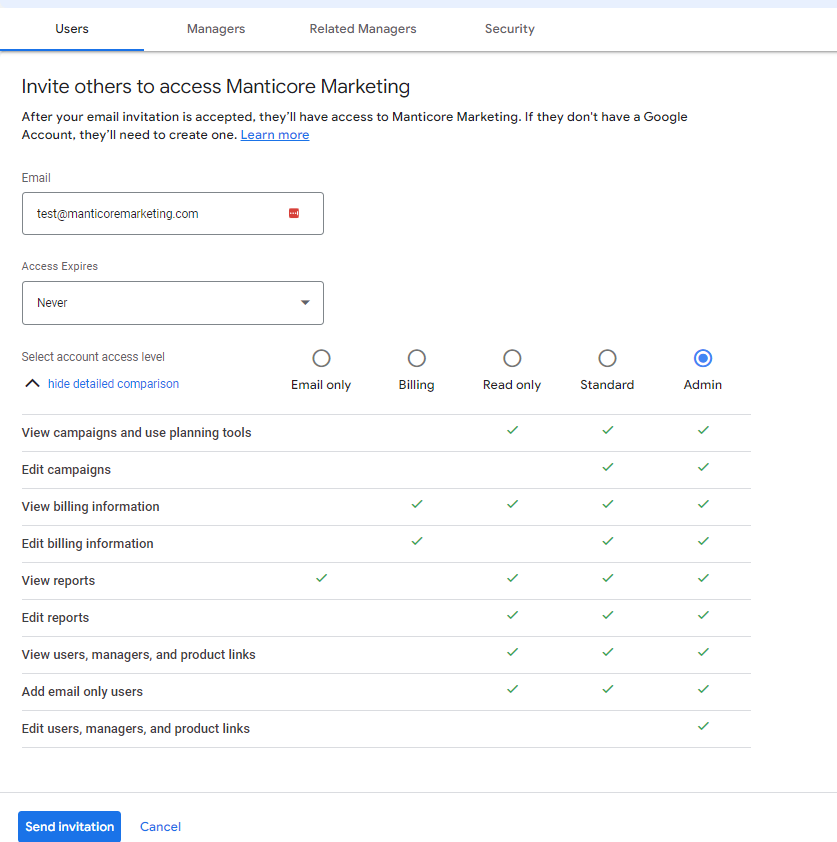
Step 4: Select Access Level
- Choose the appropriate access level for the new user:
- Admin: Can manage all aspects of the account, including adding or removing users.
- Standard: Can see and manage campaigns, but cannot add or remove users.
- Read-only: Can view the account but cannot make changes.
- Email-only: Can receive email notifications but cannot view or manage campaigns.
- After selecting the access level, click “Send invitation.”
Step 5: Confirmation
- The new user will receive an email invitation to join your Google Ads account.
- They need to click on the “Accept invitation” button in the email.
- Once they accept the invitation, they will have access to your Google Ads account based on the permissions you granted.
Tips for Managing Access
- Regularly Review Access: Periodically review who has access to your Google Ads account and adjust permissions as needed.
- Secure Your Account: Use strong, unique passwords and enable two-factor authentication to keep your account secure.
- Limit Admin Access: Only grant admin access to trusted individuals to minimize security risks.
By following these steps on how to add someone to Google Ads Manager, you can efficiently manage who has access to your campaigns, ensuring smooth collaboration and effective campaign management.